Link to Windows
- 3.8
- Rating
- 1.00B
- Installs
- Free
- Price
 Analysis by App-foxy
I use Link to Windows as a bridge between an Android phone and a Windows PC, and its value becomes clear when I stop treating the phone and computer as separate devices. Instead of repeatedly reaching for the handset, I can bring selected phone activity into a larger desktop workspace. That makes the app especially interesting for people who read better on a large screen, need fewer device switches, or find a physical keyboard easier than a small touchscreen.
Developed by Microsoft Corporation, this free productivity app is suitable for Everyone and has been available since December 16, 2015. It has grown into a widely used tool, with over a billion installs and an average rating of 3.8 from around a million ratings. Those figures suggest both broad usefulness and a fair amount of mixed experience: the idea is appealing, but the quality of the connection depends heavily on the phone, PC, network, and permissions involved.
How Link to Windows feels in everyday use
I find Link to Windows most convincing when it becomes a quiet part of a routine rather than a place I go to manage the phone. This section looks at the small choices that make the connection feel useful without letting alerts take over the PC. From there, I’ll consider whether those habits keep paying off after the first-week novelty wears off.
In-Depth Coverage of Link to Windows
Readable navigation on a larger screen
The most immediate benefit is visual. Phone notifications, messages, photos, apps, and call-related activity can be accessed from the PC rather than viewed only on the handset. For me, this changes the rhythm of a work session. I can keep my phone out of the way while checking an incoming message or deciding whether a notification needs an immediate response.
A desktop display also gives the interface more room than a phone screen. Text is easier to inspect at a comfortable size, and the mouse and keyboard provide familiar ways to move through a Windows environment. Someone who struggles with cramped layouts, small touch targets, or constant scrolling may find this arrangement less tiring than handling every task on a phone.
There is an important distinction, though. Link to Windows does not magically redesign every connected phone feature for accessibility. The experience still depends on how Windows presents the information and how the original phone app behaves. If a particular mobile app uses confusing labels, dense screens, or poor contrast, moving it to a PC does not automatically fix those problems.
I also appreciate that the app is useful without requiring me to abandon the phone entirely. The phone remains available for tasks that are more natural on a touchscreen, while the PC becomes the better place for reading, typing, organizing, and keeping several windows visible. That division is more practical than trying to force every phone function into a desktop pattern.
Keyboard control helps, but it is not universal
Typing is one of the clearest strengths. A physical keyboard can make replies, searches, and longer messages more manageable, particularly for anyone who finds phone keyboards uncomfortable or error-prone. It also helps people who already spend most of the day at a desk and do not want to interrupt their workflow to pick up a phone for every short exchange.
My advice is to think of the app as a companion layer rather than a complete replacement for the phone. Some actions feel natural with a mouse and keyboard, while others still make more sense with direct touch. The best experience comes from choosing the input method that suits the task instead of expecting one device to handle everything equally well.
Notifications are useful when carefully managed
Having phone notifications visible on the PC can reduce unnecessary reaching and help me notice time-sensitive information while working. It is particularly helpful when the phone is charging across the room, inside a bag, or placed somewhere I cannot easily see. For users who depend on visual alerts, the larger display can make an important item easier to notice than a brief vibration or small banner.
At the same time, notification access can become noisy. A busy phone may send many alerts, and copying all of them into the desktop workspace can make the computer feel more distracting. I get better results when I treat notification selection as part of the setup rather than leaving every alert active. The app is most helpful when it filters interruptions instead of simply reproducing them.
Photos and messages are easier to handle in context
Phone photos are more convenient when they appear where I am already working. If I need to refer to an image while writing a document or discussing something with someone at the computer, I do not have to switch repeatedly between screens. This is a small workflow improvement, but repeated many times, it saves attention.
Messages benefit from the same arrangement. Reading a conversation on a larger display and replying with a full keyboard can be more comfortable than composing on glass. It is also easier to keep a message visible beside another task, which helps when I need to copy a detail, check a calendar entry, or explain something while responding.
You May Also Like

 8 Ball Pool
8 Ball Pool Is Built on Rivalries, Rematches, and Routine
A close look at the rivalries, rematches, shared routines, and unanswered safety questions that turn a quick pool match into a persistent mobile community.

 Samsung Music
Samsung Music’s Quiet Strength Is Playing What You Already Own
Its reach comes less from spectacle than from dependable access to a personal library. That simplicity is both the app’s strongest retention engine and its ceiling.

 AccuWeather: Weather Radar
AccuWeather Review: A Quick, Clear Forecast for Everyday Decisions
For everyday plans, the best forecast is the one you can understand quickly. AccuWeather makes rain timing, radar, and local conditions easy to act on, with a few trade-offs.

 Hill Climb Racing
Why Hill Climb Racing Still Turns Crashes Into One More Run
A tiny car, a bumpy hill and one more upgrade: Hill Climb Racing keeps resurfacing because its simple chaos makes every near-miss feel personal.

 AliExpress - Shopping App
AliExpress Makes Global Shopping Feel Personal, but Shoppers Bear the Risk
AliExpress turns a global marketplace into a pocket-sized discovery engine. Its reach is useful, its shopping loop compelling, and its trade-offs easy to miss.

 Lords Mobile: Kingdom Wars
Lords Mobile Is a Kingdom-Building Routine, Not a Quick Match
A case-by-case verdict on the building, battles, device demands, and social commitments that make Lords Mobile rewarding for some players and exhausting for others.
More From Our News Desk
View All News


Privacy deserves equal attention. A message or photo shown on a shared monitor may be visible to people nearby, even if the phone itself would have stayed private. I would avoid leaving sensitive conversations open in a public office, classroom, or family computer area. Convenience is strongest when the screen environment is under my control.
Useful for different sensory preferences
Link to Windows can support people who prefer visual information on a larger display, physical typing, and a stable desktop layout. It may also help someone who finds phone handling tiring or who needs to keep the handset in a fixed location. These are practical accessibility advantages, even though they do not mean every connected function will work equally well for every person.
For users who rely mainly on audio cues, the benefit is less predictable. The app brings phone activity into Windows, but the usefulness of that activity still depends on the computer’s notification behavior, audio settings, and the individual phone app. I would test the exact notifications and actions that matter rather than assuming that all phone feedback transfers in the same way.
People with light sensitivity may appreciate being able to use their normal Windows display settings, but the experience can vary between the desktop interface and mirrored or phone-based content. Similarly, larger text on Windows may improve surrounding navigation without changing the text inside every connected app. This is why a short trial with real daily tasks is more informative than relying on the general promise of cross-device access.
Situational access is where the app earns its place
One realistic example is a remote worker who keeps the phone on a charger while taking notes on a PC. A message arrives, and the person can read it on the larger screen, decide whether it is urgent, and answer without breaking concentration. If the reply is longer than a sentence, the keyboard is a meaningful advantage. If the notification is irrelevant, it can be dismissed without a second device switch.
Another example is someone with limited reach or hand fatigue. Keeping the phone in one convenient position and doing more work from the computer may reduce repeated lifting, gripping, and tapping. This does not remove all physical interaction, but it can change how often the phone must be handled. That difference may matter during a long study session or a day filled with computer-based work.
The app can also be useful in noisy or visually busy surroundings. A phone buried under papers or placed in another room is easy to miss, while a notification on the active PC may be noticed sooner. The reverse is also true: in a quiet shared space, a visible desktop alert may be less discreet than a private phone vibration. Context determines whether the same feature feels helpful or intrusive.
For people who alternate between locations, the app can reduce the mental cost of remembering where a piece of information appeared. A photo or message available within the PC session is easier to use alongside documents and browser tabs. I find this most valuable for small tasks that are too minor to justify a full change of device but important enough to interrupt my train of thought.
Setup is part of the accessibility experience
The first connection requires attention. The phone and PC need to work together, and the app’s requested access must be accepted for the relevant functions to operate. This is not merely a technical step: permissions can be difficult to understand, especially for users who want a narrow, predictable connection rather than broad access to phone activity.
I recommend setting up one function at a time. Start with notifications, then test messages, photos, calls, or app access according to what you actually need. This makes it easier to identify which part is useful and which permission or connection issue is causing trouble. It also prevents the desktop from filling with features that create more distraction than assistance.
The current version is 1.26011.92.0, and the minimum operating system listed is Windows 10. That makes the app relevant to many existing computers, but compatibility is still not identical across every phone and PC combination. If a particular feature matters for work or communication, I would test it before depending on the app in an important situation.
Where the experience still creates barriers
The biggest limitation is dependence on several pieces working together. A weak connection, a sleeping device, an interrupted permission, or an incompatible feature can make the experience feel inconsistent. When everything is working, the bridge is convenient; when it is not, troubleshooting can be more frustrating than simply picking up the phone.
There is also a learning curve for people who do not already feel comfortable with Windows multitasking. Notifications, phone content, and desktop applications can compete for attention. Someone who is easily overwhelmed by several panels or alerts may prefer a simpler arrangement, with only the most necessary functions enabled.
Link to Windows is not the right choice for someone seeking a completely phone-free computer. It does not turn every mobile task into a full desktop application, and some actions remain more comfortable or more direct on the handset. It is also a weaker fit if privacy requires keeping phone notifications and messages completely separate from a shared PC.
People who already use a different ecosystem may find another built-in solution more coherent. A platform-specific alternative can sometimes offer a smoother experience when the phone and computer come from the same manufacturer or software family. I would choose Link to Windows when the Windows PC is central to my routine and I want practical access to selected phone functions, not because it eliminates every boundary between devices.
My inclusive verdict
After using it as a desktop companion, I see Link to Windows as a genuinely useful productivity tool with meaningful benefits for readability, keyboard access, reduced device handling, and situational convenience. Its strongest audience includes people who work at a Windows computer, prefer a larger screen, type frequently, or want to keep a phone stationary while still noticing important activity.
Its inclusive value comes from flexibility rather than a single universal interface. A user can decide whether notifications, messages, photos, calls, or other supported phone activity belong in the desktop workflow. That choice matters: the app works best when configured around a person’s abilities and environment instead of being enabled wholesale.
I would recommend trying it if moving between phone and PC is a daily annoyance. Begin with one high-value task, keep sensitive information in mind, and judge the connection using the actual phone apps you depend on. If the setup feels stable, the larger screen and keyboard can make ordinary communication noticeably easier.
My final view is positive but measured. Link to Windows is free, broadly available, and mature enough to be worth testing, yet it cannot solve every accessibility or compatibility problem by itself. Its real strength is giving users more choice about where phone activity happens. For many Windows users, that choice can make a busy day more readable, less physically demanding, and easier to manage; for others, the extra connection layer may not justify its occasional friction.
FAQs for Link to Windows
01What is the main purpose of the Link to Windows app?
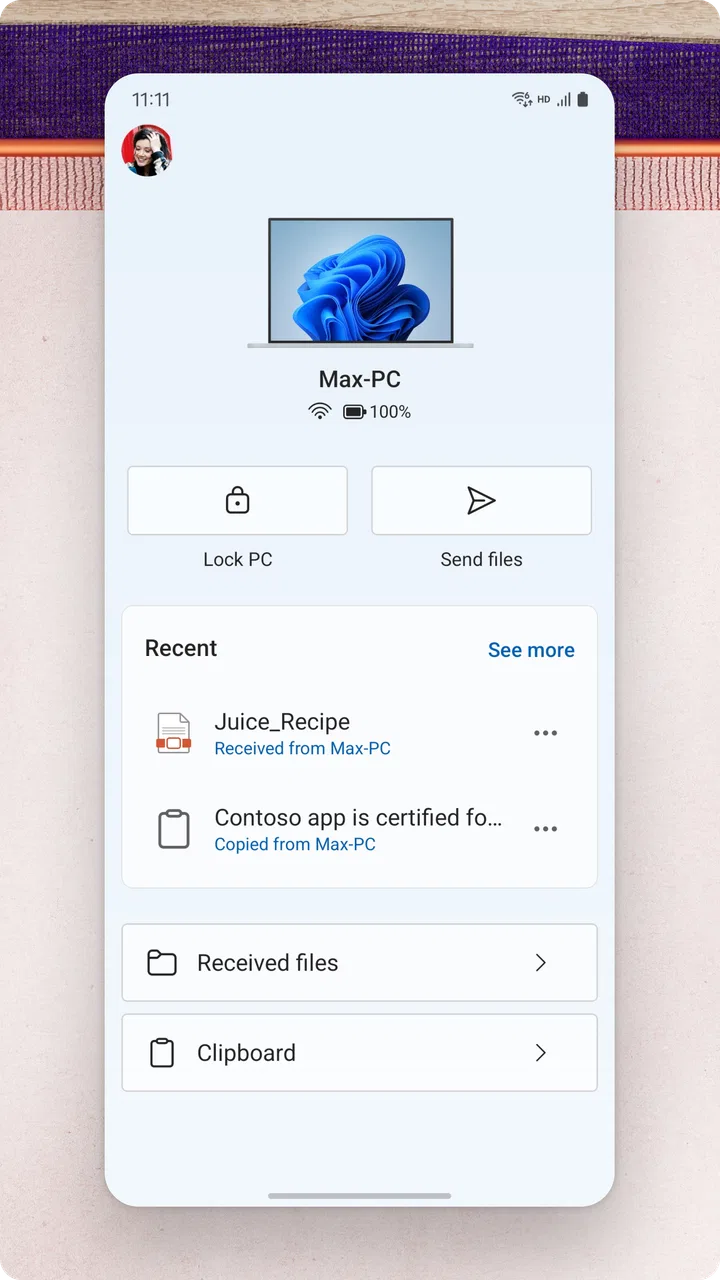
The Link to Windows app is designed to seamlessly connect your Android device to a Windows PC. This integration allows you to access phone notifications, messages, and photos directly on your computer. It enhances productivity by enabling users to handle phone tasks without switching devices.
02Is the Link to Windows app compatible with all Android devices?
The app is primarily compatible with Samsung and Surface Duo devices, offering a more integrated experience with these models. However, it can be installed on other Android devices, but functionality may vary. It’s recommended to check the specific compatibility with your phone model for optimal performance.
03Does using Link to Windows affect my phone’s battery life?
Connecting your Android device to a PC via Link to Windows does use some battery, as it continuously maintains a connection between devices. The impact on battery life is generally minimal, but it’s advisable to monitor usage if you notice significant battery drain, especially during extensive multitasking.
04How secure is the data transferred between my phone and PC using Link to Windows?
Security is a priority for Link to Windows, as it uses encryption to protect data transferred between your phone and PC. Microsoft ensures that personal information such as messages and photos are kept private and secure, preventing unauthorized access during transit.
05Can I make phone calls through my PC using the Link to Windows app?
Yes, one of the features of Link to Windows is the ability to make and receive calls directly from your PC. This requires your phone to be connected to the PC via Bluetooth. Ensure both devices are properly paired to utilize this feature effectively, enhancing convenience and multitasking capabilities.
Pros
- Seamless integration with Windows PCs.
- Quick access to phone notifications.
- Easy file transfer between devices.
- Supports calls and messages from PC.
- User-friendly interface and setup.
Cons
- Limited compatibility with non-Samsung devices.
- Occasional connectivity issues reported.
- Requires Windows 10 or later.
- Some features need Wi-Fi connection.
- Limited functionality for iOS devices.

Link to Windows
Gallery